


Connect Claude Code to ClickUp
Connect Claude Code to ClickUp: 1. Sign in to ApexGenius and connect ClickUp. 2. Add the ApexGenius MCP server. 3. Start using ClickUp in Claude Code.
1,000 free credits · No card required
How to connect ClickUp to Claude Code
- 1Sign in to ApexGenius and connect ClickUp
- 2Add the ApexGenius MCP server to Claude Code
- 3Start using ClickUp in Claude Code
- 1
Connect ClickUp to ApexGenius
Connect ClickUp
ClickUp opens its own sign-in. Sign in and allow ApexGenius.
- 2
Connect ApexGenius to Claude Code
Copy the MCP address
On Start, pick API key, open Manual setup, and copy the MCP address.
- 3
Approve access
ApexGenius opens its approval page. Review the access, then approve.
Add the ApexGenius MCP server to Claude Code
Claude Code stores MCP servers in ~/.claude.json. With --scope user the server is available in every project. Without it, only in the project where you ran the command.
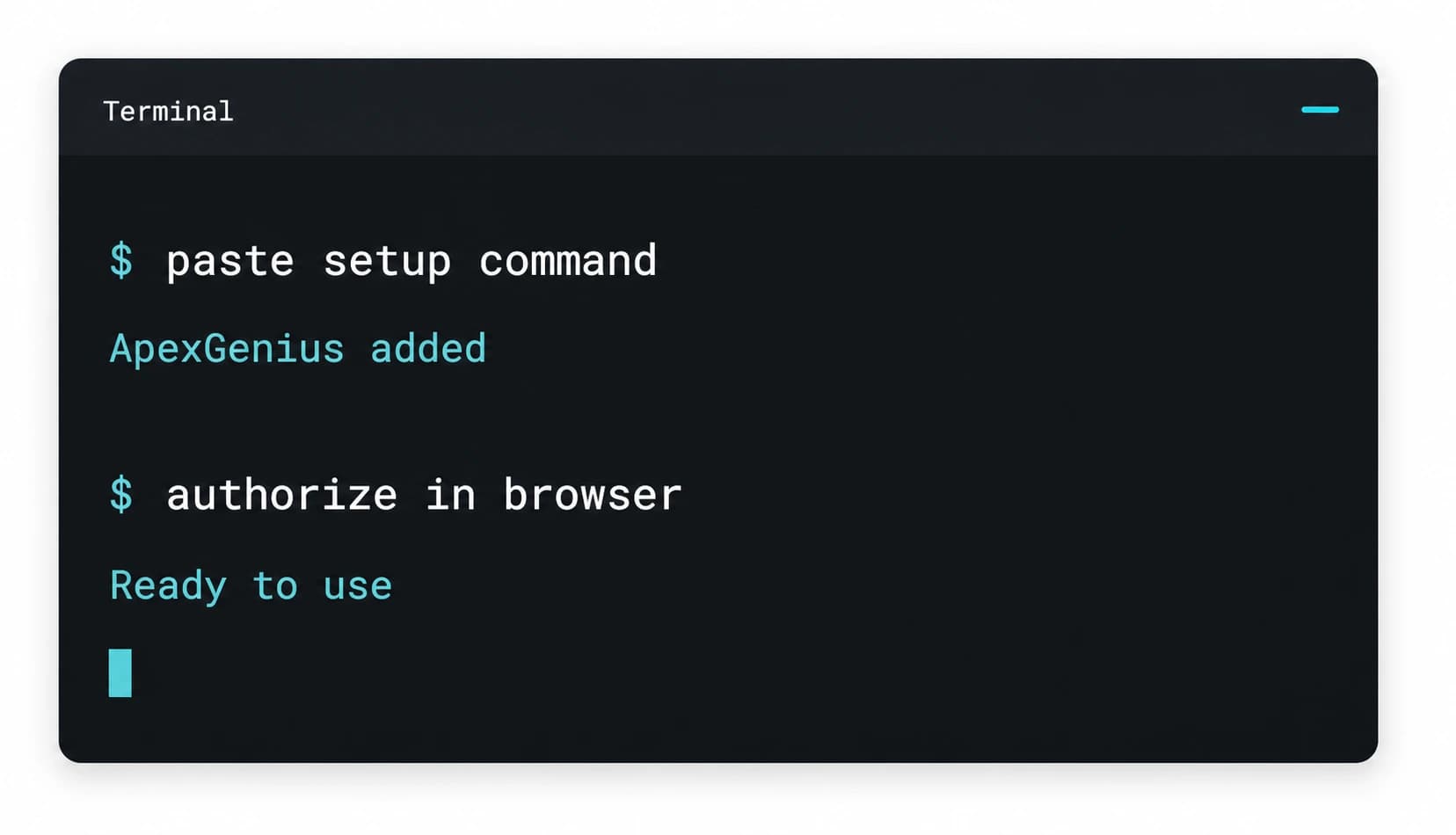
- Run the command. Claude Code prints an Added line.
- Start Claude Code, run
/mcp, choose apexgenius and follow the sign-in in your browser. From a shell,claude mcp login apexgeniusdoes the same. - Approve access on the ApexGenius page.
claude mcp add --transport http --scope user apexgenius https://server.autom8.pro/mcpCheck it. Run claude mcp list. Each server shows a status, such as Connected or Needs authentication. claude mcp get apexgenius shows the detail.
Steps follow Claude Code documentation, Connect Claude Code to tools via MCP (opens in a new tab), read November 12, 2026.
Then ask Claude Code
Show the spaces, folders and lists in my connected ClickUp workspace. Do not create or change anything.
Written setup, step by stepShow
Before you start
- An account with permission to use the ClickUp resources you intend to connect.
1. Connect ClickUp to ApexGenius
- Open ClickUp in Connections. Choose Connect, or Add connection when offered. Give the connection a name if prompted. If Gateway setup pending appears, contact ApexGenius support before continuing.
- Choose the account and review access. Sign in to ClickUp in the browser and choose the workspace to allow if ClickUp asks. ClickUp uses browser authorization; no API key is pasted into ApexGenius.
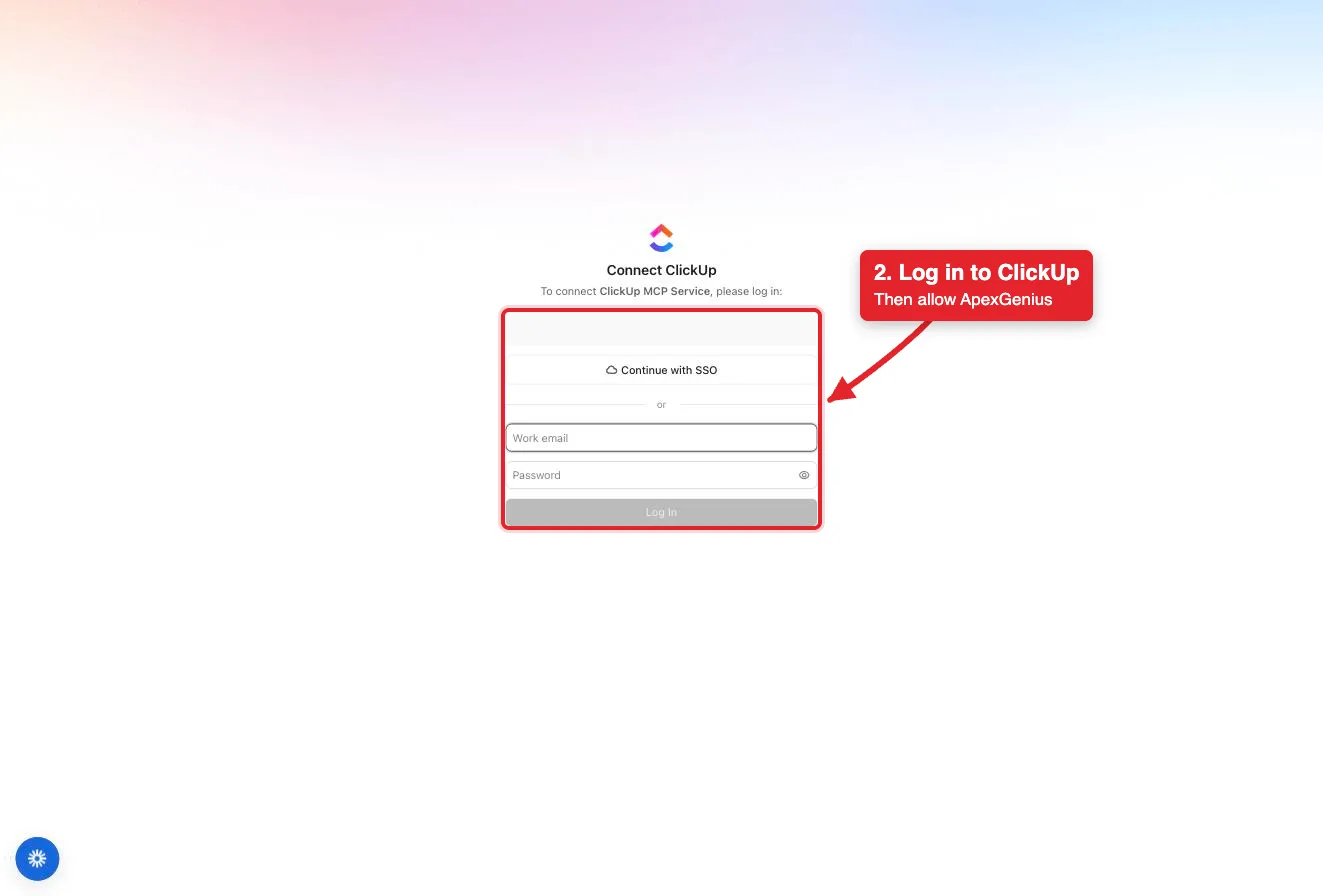
Connect opens ClickUp's login for the ClickUp MCP Service. Log in with SSO or your work email, then allow ApexGenius.Open full-size image (opens in a new tab) - Review the connected account and resources. Confirm the connected ClickUp account and workspace. Open Tools to review the task, list, doc, chat and time tools. ClickUp limits MCP calls per day by plan.
- Check the connection. Use Test connection or Check again and read the reported status. Add an AI agent from the AI agents page, choose Read only for the first test, and try the question below.
2. Connect ApexGenius to Claude Code
Use this server address when adding the connection:
https://server.autom8.pro/mcpThe steps are above, under Add the ApexGenius MCP server to Claude Code. These notes apply to Claude Code only.
- Over SSH or without a browser.
claude mcp login apexgeniusprints the authorization URL when it finds no local browser. Open it on your own machine, then paste the full redirect URL from the address bar back at the prompt. Add--no-browserto force that. - Headless runs. A
claude -prun has no/mcppanel and cannot run the sign-in. Sign in once from an interactive session, or withclaude mcp login, first. - Signing out. Clear authentication in the
/mcpmenu, orclaude mcp logout apexgenius, removes the stored sign-in. - Access. When ApexGenius asks what Claude Code may use, choose Read only for the first test, or Custom to limit it to the tools you need.
3. Verify one safe read
Show the spaces, folders and lists in my connected ClickUp workspace. Do not create or change anything.
Show the spaces, folders and lists in my connected ClickUp workspace. Do not create or change anything.Compare the returned account and resource with ClickUp. Check the connection status separately from the result of the first read.
Full guide: the ClickUp setup guide.
What it looks like in Claude Code
Illustration of a task, not a recorded customer result. Your answers come from the account and dates you choose.
apex_search_toolsClickUp workspace · Find ClickUp readsCompleteapex_call_read_toolGet Workspace Hierarchy · Read the workspace hierarchyCompleteIllustrative example: the workspace has three spaces, Product, Marketing and Operations. Product holds a Sprint folder with Backlog and Sprint 12 lists. Nothing was changed.
Read-only routeWhat to ask Claude Code about ClickUp
- Map the workspace
Show the spaces, folders and lists in my ClickUp workspace. Do not change anything.
Runs
Get Workspace Hierarchy(read). - Find a task
Find the task about the login bug and show its status, assignee and due date.
Runs
Search Workspace(read), thenGet Task(read). - Summarize a thread
Summarize the comments on this task and list the action items.
Runs
Get Task Comments(read), thenGet Threaded Replies(read).
These 3 questions use 5 of ClickUp’s 48 operations. The full list is below.
- List the open tasks in the Sprint list with their assignees and due dates. (read)
- Create a task in the list I name, assign it to me, and set the due date for Friday. (write)
What Claude Code can do in ClickUp
48 operations: 20 read, 28 write. Read looks things up and changes nothing. Writes change ClickUp and run only when you turn them on.
Search
3 readSearch WorkspacereadSearch tasks, lists, folders and docs across the workspace.
Search tasks by task typereadFind tasks of one task type, such as bugs.
Search tasks by tagreadFind tasks that carry a tag.
Tasks
1 read · 6 writeGet TaskreadRead the full details of one task by its ID.
Create TaskwriteCreate a task in a list with name, description, assignees, due date and priority.
Update TaskwriteChange a task's name, description, status, assignees or due date.
Set Custom FieldswriteSet custom field values on a task.
Create Bulk TaskswriteCreate several tasks in one list in one call.
Update Bulk TaskswriteChange status, assignee or due date on many tasks at once.
Delete taskwriteDelete a task or subtask. Restoring it happens in ClickUp itself.
Comments and files
2 read · 2 writeGet Task CommentsreadRead all comments on a task.
Get Threaded RepliesreadRead the replies under one task comment.
Create Task CommentwritePost a comment on a task. An @mention notifies that person.
Attach File to TaskwriteUpload a file and attach it to a task.
Tags, links and moves
8 writeAdd Tag to TaskwriteApply an existing tag to a task.
Remove Tag from TaskwriteRemove a tag from a task.
Add task linkwriteLink two related tasks.
Remove task linkwriteRemove the link between two tasks.
Add dependencywriteMark that one task waits on another.
Remove dependencywriteRemove a dependency between tasks.
Move task to a new ListwriteMove a task to a different home list.
Add task to another ListwriteShow a task in a second list as well.
Spaces, folders and lists
3 read · 5 writeGet Workspace HierarchyreadRead every space, folder and list in the workspace, with IDs.
Get ListreadRead one list, including its statuses.
Get FolderreadRead one folder and the lists inside it.
Create ListwriteCreate a list in a folder or space.
Create List in FolderwriteCreate a list inside a named folder.
Update ListwriteRename a list or change its settings.
Create FolderwriteCreate a folder in a space.
Update FolderwriteRename a folder or change its settings.
Time tracking and status
5 read · 3 writeGet Task Time EntriesreadRead the time logged on one task.
Get time entries for multiple tasksreadRead total time for tasks in a space, folder or list.
Get Current Time EntryreadCheck whether a timer is running and on which task.
Get Time in Status for a taskreadRead how long a task has spent in each status.
Get Time in Status for tasks in a ListreadRead time in status for the tasks in a list.
Start Time TrackingwriteStart a timer on a task for the signed-in user.
Stop Time TrackingwriteStop the running timer.
Add Time EntrywriteLog a block of time on a task.
Members
3 readGet Workspace MembersreadList the members and guests in the workspace.
Find Member by NamereadFind a member by name or email.
Resolve AssigneesreadMatch names to user IDs before assigning a task.
Chat
1 read · 1 writeGet Chat ChannelsreadList the Chat channels in the workspace.
Send Chat MessagewritePost a message to a Chat channel. It is sent at once.
Docs
2 read · 3 writeList Document PagesreadList the pages in a doc.
Get Document PagesreadRead the content of one or more doc pages.
Create DocumentwriteCreate a doc in a space, folder or private docs.
Create Document PagewriteAdd a page or sub-page to a doc.
Update Document PagewriteEdit the content of a doc page.
You choose the access. When you approve Claude Code, pick Full access, Read only, or Custom.
ClickUp sets the boundary. The connection reaches what the signed-in ClickUp user can reach in the authorized workspace.
Reads use a route that checks ClickUp's own read-only label before every call.
Writes run immediately. Blocked hides a tool from agents.
ClickUp limits MCP calls by plan: without the Everything AI add-on, 50 calls per 24 hours on Free Forever and 300 on Unlimited and above. ClickUp's MCP server is in public beta.
Disconnecting stops future gateway access. It does not undo a task change, comment, chat message or deletion that already ran.
Questions about connecting Claude Code to ClickUp
Updated November 12, 2026.
How do I connect Claude Code to ClickUp?
Connect Claude Code to ClickUp through ApexGenius in three steps. Sign in to ApexGenius and connect ClickUp by signing in to ClickUp in the browser. In Claude Code, run claude mcp add --transport http --scope user apexgenius https://server.autom8.pro/mcp, then run /mcp and sign in. Then open a task in Claude Code and ask a question about your ClickUp. Start with a read, so nothing changes.
How do I check that Claude Code can use ClickUp?
Run claude mcp list in your terminal. apexgenius should show Connected. If it shows Needs authentication, run /mcp inside Claude Code, or claude mcp login apexgenius in your shell, and finish the browser sign-in. Then ask: “Show the spaces, folders and lists in my connected ClickUp workspace. Do not create or change anything.”
Is there a ClickUp MCP server for Claude Code?
Yes. ApexGenius is an MCP server that Claude Code connects to once. It carries your ClickUp connection and 48 ClickUp operations, so Claude Code does not need a separate ClickUp integration or plugin. You set it up one time and add each agent the same way.
What can Claude Code do in ClickUp once it is connected?
Claude Code can run 48 ClickUp operations through ApexGenius: 20 reads that search the workspace and read tasks, comments, docs, members, Chat channels and time entries, and 28 writes that create and update tasks, comments, lists, folders, docs and time entries, send Chat messages and delete a task.
Can Claude Code read my whole ClickUp workspace?
Only what the signed-in ClickUp user can reach in the authorized workspace. ClickUp sets that boundary, and no API key is pasted into ApexGenius. ClickUp also limits MCP calls per day by plan, so check your plan before a big job.
Can Claude Code change my ClickUp?
Not until you allow writes. Reads go through a route that checks ClickUp’s read-only label. With writes on, they run right away, and comments and Chat messages notify people when posted. Deleting a task is marked destructive. Turn any tool off to block calls.
Can I use the same ClickUp connection with Claude, ChatGPT, Grok Bot or Muse?
Yes. One ClickUp connection in ApexGenius works with every compatible agent you add, including Claude, ChatGPT, Grok Bot or Muse. Each agent gets its own access choice and its own short setup. The ClickUp skill loads in all of them, so it travels with the connection.
More connections like this one
Claude Code with other apps
 Supabase
 Cal.com
 GitHub
 Stripe
 Linear
 Jira
 HQ Rental
 Google Forms
All 48 apps Claude Code can use
 Google Tasks
 Google Calendar
 Google Sheets
 Calendly
 monday.com
 ElevenLabs
 FreshBooks
 Trello
 GitLab
 Mobbin
 Slack
 Discord
 ChatGPT Ads
 Context.dev
 Attio
 Semrush
 Notion
 Apify
 Google Ads
 Google Analytics
 Google Meet
 Gmail
 Google Chat
 Google Docs
 Google Drive
 Google Slides
 Apollo
 Blotato
 Bing Webmaster
 Atlassian Rovo
 Polymarket
 OP.GG
 YouTube
- YouTube Analytics
 Salesforce
 n8n
 Confluence
 Google Search Console
 TypeSafe
 HubSpot
 Claude
 Grok Bot
 Muse
Connect ClickUp to Claude Code today
Start free1,000 free credits. No card required. Disconnect any time.