


Connect Claude Code to monday.com
Connect Claude Code to monday.com: 1. Sign in to ApexGenius and connect monday.com. 2. Add the ApexGenius MCP server. 3. Start using monday.com in Claude Code.
1,000 free credits · No card required
How to connect monday.com to Claude Code
- 1Sign in to ApexGenius and connect monday.com
- 2Add the ApexGenius MCP server to Claude Code
- 3Start using monday.com in Claude Code
- 1
Connect monday.com to ApexGenius
Connect monday.com
Create a read-only token in monday.com. You paste it into ApexGenius once.
- 2
Connect ApexGenius to Claude Code
Copy the MCP address
On Start, pick API key, open Manual setup, and copy the MCP address.
- 3
Approve access
ApexGenius opens its approval page. Review the access, then approve.
Add the ApexGenius MCP server to Claude Code
Claude Code stores MCP servers in ~/.claude.json. With --scope user the server is available in every project. Without it, only in the project where you ran the command.
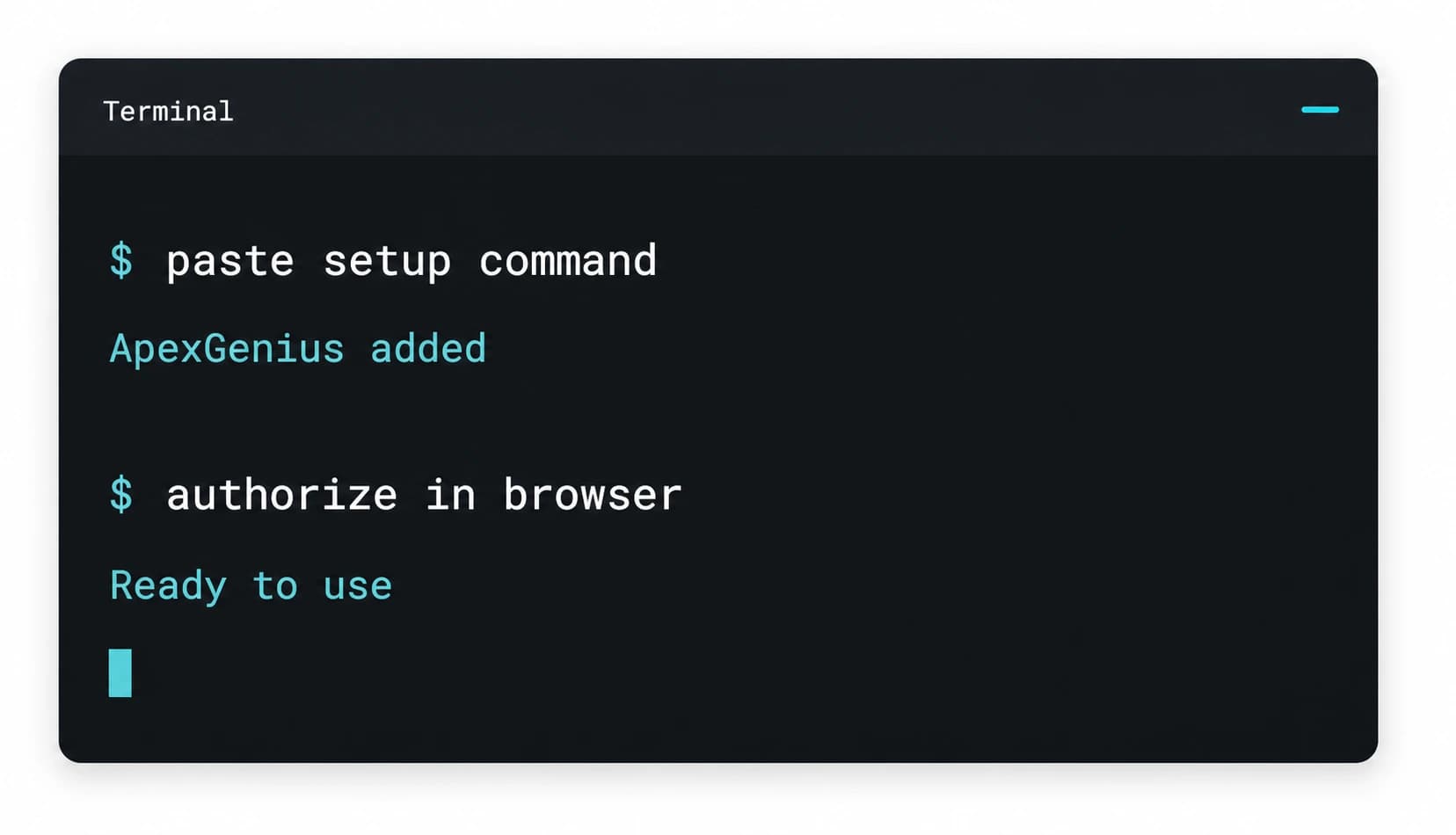
- Run the command. Claude Code prints an Added line.
- Start Claude Code, run
/mcp, choose apexgenius and follow the sign-in in your browser. From a shell,claude mcp login apexgeniusdoes the same. - Approve access on the ApexGenius page.
claude mcp add --transport http --scope user apexgenius https://server.autom8.pro/mcpCheck it. Run claude mcp list. Each server shows a status, such as Connected or Needs authentication. claude mcp get apexgenius shows the detail.
Steps follow Claude Code documentation, Connect Claude Code to tools via MCP (opens in a new tab), read November 12, 2026.
Then ask Claude Code
Using monday.com, tell me which user and account are connected and list the workspaces I can open. Do not change anything.
Written setup, step by stepShow
Before you start
- A monday.com account that can use the API and open the boards you want your AI to use.
- Your personal API token from monday.com. It has the same access you have in monday.
1. Connect monday.com to ApexGenius
- Copy your API token in monday.com. In monday.com, click your profile picture at the top right and choose Developers. Open My access tokens (called API token in some accounts), choose Show, and copy the token. Admins can also find it under Administration, Connections, Personal API token.
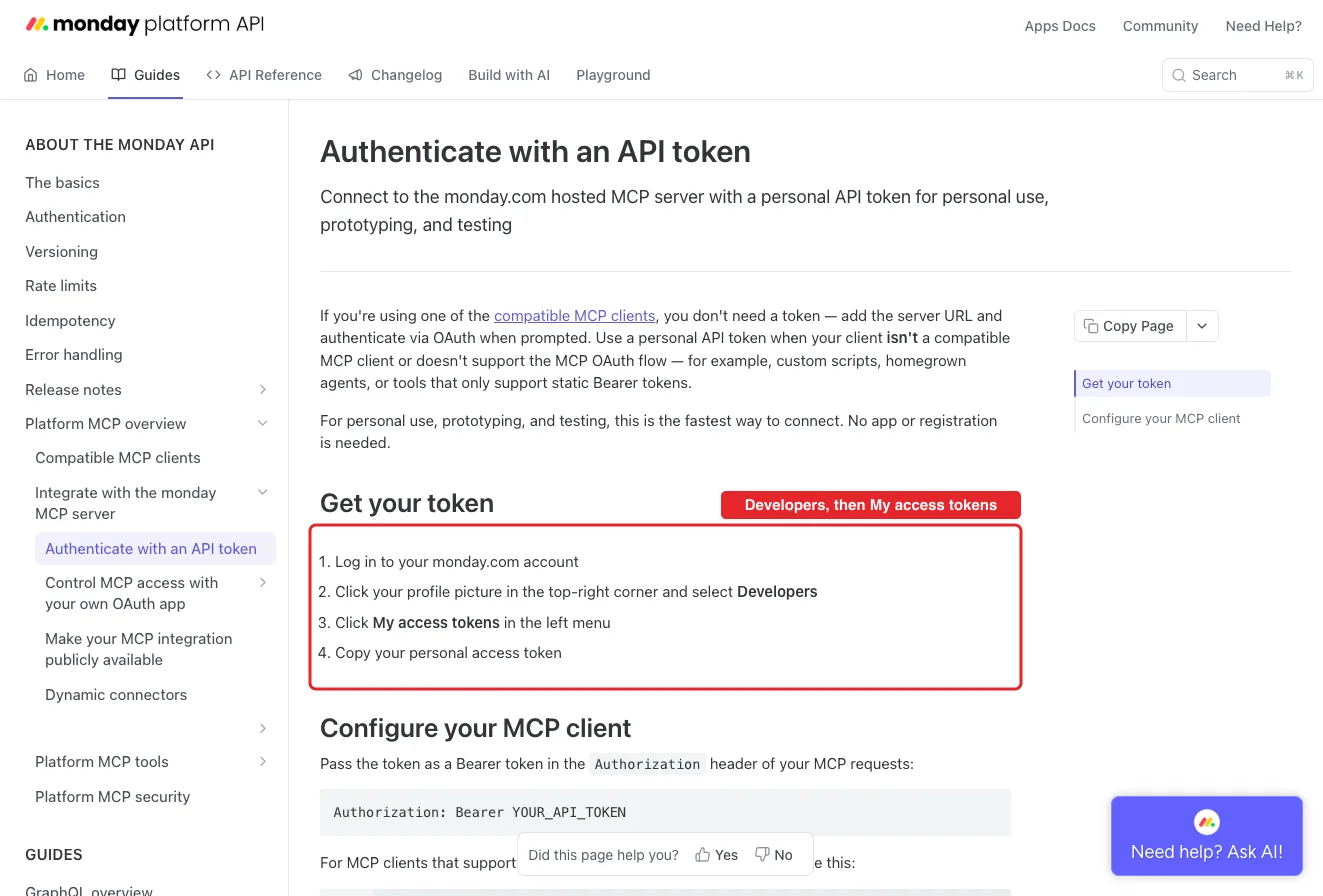
monday's own guide: profile picture, Developers, then My access tokens. This is monday's public guide page, so no account appears in it.Open full-size image (opens in a new tab) - Open monday.com in Connections. Sign in to ApexGenius, open Connections, choose monday.com, and select Connect.
- Paste the token. Paste the token into the connection form. ApexGenius supplies the mcp.monday.com address, checks the token with monday's MCP, and stores it encrypted. Never paste the token into a chat.
- Check the connected user. Open Tools to review the board, item, doc and update tools, then ask your AI the question below. Compare the user and workspaces with monday.com and check Tool Activity.
2. Connect ApexGenius to Claude Code
Use this server address when adding the connection:
https://server.autom8.pro/mcpThe steps are above, under Add the ApexGenius MCP server to Claude Code. These notes apply to Claude Code only.
- Over SSH or without a browser.
claude mcp login apexgeniusprints the authorization URL when it finds no local browser. Open it on your own machine, then paste the full redirect URL from the address bar back at the prompt. Add--no-browserto force that. - Headless runs. A
claude -prun has no/mcppanel and cannot run the sign-in. Sign in once from an interactive session, or withclaude mcp login, first. - Signing out. Clear authentication in the
/mcpmenu, orclaude mcp logout apexgenius, removes the stored sign-in. - Access. When ApexGenius asks what Claude Code may use, choose Read only for the first test, or Custom to limit it to the tools you need.
3. Verify one safe read
Using monday.com, tell me which user and account are connected and list the workspaces I can open. Do not change anything.
Using monday.com, tell me which user and account are connected and list the workspaces I can open. Do not change anything.Confirm the user and workspaces match what you see in monday.com. This read changes nothing, but every call counts toward your account's daily monday API limit: 1,000 calls on Free, Basic and Standard, 10,000 on Pro and 25,000 on Enterprise.
Full guide: the monday.com setup guide.
What it looks like in Claude Code
Illustration of a task, not a recorded customer result. Your answers come from the account and dates you choose.
apex_search_toolsmonday.com account · Find monday.com readsCompleteapex_call_read_toolget_user_context · Read the connected userCompleteapex_call_read_toollist_workspaces · List the workspacesCompleteIllustrative example: the token belongs to the user Sam Lee on the Acme account, with three workspaces: Marketing, Product and Operations. Nothing was changed.
Read-only routeWhat to ask Claude Code about monday.com
- Check the account
Which monday.com user and account are connected, and which workspaces can I open? Do not change anything.
Runs
get_user_context(read), thenlist_workspaces(read). - Read a board
Find the Campaigns board and list its items in the Live group with owner and status.
Runs
search(read), thenget_board_info(read), thenget_board_items_page(read). - Summarize updates
Summarize the latest updates on the item I name and list the open questions.
Runs
get_updates(read).
These 3 questions use 6 of monday.com’s 60 operations. The full list is below.
- Create an item called Launch checklist in the Campaigns board and set its status to Working on it. (write)
What Claude Code can do in monday.com
60 operations: 24 read, 36 write. Read looks things up and changes nothing. Writes change monday.com and run only when you turn them on.
Boards and items
5 read · 5 writeget_board_inforeadRead a board's columns, groups, views and owners.
get_board_items_pagereadRead a board's items a page at a time, with filters.
get_board_activityreadRead a board's activity log.
board_insightsreadCount, filter and group a board's data.
get_column_type_inforeadRead the settings a column type takes.
create_boardwriteCreate a board in a workspace.
create_groupwriteAdd a group to a board.
create_columnwriteAdd a column to a board.
create_itemwriteCreate an item or subitem, or duplicate an item.
change_item_column_valueswriteChange one or more column values on an item.
Workspaces and folders
2 read · 5 writelist_workspacesreadList the workspaces you can open.
workspace_inforeadList the boards, docs and folders in a workspace.
create_workspacewriteCreate a workspace.
update_workspacewriteChange a workspace's name, kind or description.
create_folderwriteCreate a folder in a workspace.
update_folderwriteRename, recolor or move a folder.
move_objectwriteMove a board, folder or overview to a new place.
Search, people and files
4 read · 2 writesearchreadSearch boards, docs, forms and folders.
get_user_contextreadRead the connected user, the account, and their boards and workspaces.
list_users_and_teamsreadFind users and teams by id or name.
get_assetsreadRead file details and download links.
get_asset_upload_urlwriteStart a file upload (step 1 of 2).
finalize_asset_uploadwriteFinish the upload and attach the file to an item (step 2 of 2).
Updates and notifications
1 read · 2 writeget_updatesreadRead the updates on an item or board.
create_updatewritePost an update or reply on an item. It is posted at once.
create_notificationwriteSend a bell notification, and an email if asked. It is sent at once.
Docs
1 read · 2 writeread_docsreadRead docs by id, object or workspace.
create_docwriteCreate a doc in a workspace or on an item.
update_docwriteRewrite a doc's content and blocks. monday marks it destructive.
Dashboards and views
1 read · 6 writeall_widgets_schemareadList the widget types a dashboard can hold.
create_dashboardwriteCreate a dashboard from one or more boards.
create_widgetwriteAdd a widget to a dashboard or board view.
create_viewwriteAdd a board view, with filters and sorting.
update_viewwriteChange a view's name, filters or sort.
create_view_tablewriteAdd a table view with chosen columns and grouping.
update_view_tablewriteChange a table view's columns, filters, sort or tags.
Forms
1 read · 4 writeget_formreadRead a WorkForm by its token.
create_formwriteCreate a WorkForm with its own board.
update_formwriteChange a form's settings, password or tags.
create_form_submissionwriteSubmit a response to a WorkForm.
form_questions_editorwriteAdd, change or delete form questions.
Automations and workflows
2 read · 5 writelist_automationsreadList a board's automations with their state.
plan_workflowreadPlan a workflow for a process. Builds nothing.
create_automationwriteCreate a board automation from a plain description.
create_workflowwriteCreate an empty workflow in a workspace.
update_workflowwriteChange a workflow draft.
manage_automationswriteTurn an automation on or off, or delete it.
publish_workflowwriteReplace the live workflow with the draft.
AI agents
1 read · 4 writeagent_catalogreadList the triggers and skills an agent can use.
manage_agent_triggerswriteAdd or remove an agent's triggers.
manage_agent_skillswriteCreate skills and attach or detach them.
manage_agent_knowledgewriteGive or remove an agent's access to boards and docs.
manage_agentwriteCreate, read, change, run, turn on or off, or delete an agent.
Meetings and sprints
4 readget_notetaker_meetingsreadRead notetaker meetings with summaries and action items.
get_monday_dev_sprints_boardsreadFind sprint boards and their task boards.
get_sprints_metadatareadRead sprint names, dates, goals and status.
get_sprint_summaryreadRead a summary of how a sprint went.
GraphQL API
2 read · 1 writeget_graphql_schemareadRead the GraphQL schema for queries and mutations.
get_type_detailsreadRead the fields and arguments of one GraphQL type.
all_monday_apiwriteRun any GraphQL query or mutation, including deletes.
You choose the access. When you approve Claude Code, pick Full access, Read only, or Custom.
monday.com sets the boundary. The token reaches every workspace and board your monday user can open, nothing more.
Reads use a route that checks monday's own read-only label before every call.
Writes run immediately. Blocked hides a tool from agents.
Every call counts toward your account's daily monday API limit, which resets at midnight UTC: 1,000 calls on Free, Basic and Standard, 10,000 on Pro and 25,000 on Enterprise.
Disconnecting stops ApexGenius access. It does not undo a change, update or notification that already ran, and it does not revoke the token. Regenerate the token in monday to stop it everywhere.
Questions about connecting Claude Code to monday.com
Updated November 12, 2026.
How do I connect Claude Code to monday.com?
Sign in to ApexGenius and connect monday.com. In Claude Code, run claude mcp add --transport http --scope user apexgenius https://server.autom8.pro/mcp, then run /mcp and sign in. Then ask Claude Code: “Using monday.com, tell me which user and account are connected and list the workspaces I can open. Do not change anything.” Start with a read, so nothing changes.
How do I check that Claude Code can use monday.com?
Run claude mcp list in your terminal. apexgenius should show Connected. If it shows Needs authentication, run /mcp inside Claude Code, or claude mcp login apexgenius in your shell, and finish the browser sign-in. Then ask: “Using monday.com, tell me which user and account are connected and list the workspaces I can open. Do not change anything.”
What can my AI reach in monday.com?
What your monday user can reach: the workspaces, boards, items, docs, forms and updates you can open in monday.com. The token has your own access, so use a monday user with only the access your AI needs.
Do changes wait for me?
No. Writes run immediately. Blocked hides a tool from agents.
Can my AI delete anything in monday.com?
Some tools can. all_monday_api runs any GraphQL mutation, manage_automations can delete an automation, and manage_agent can delete an agent. They are labelled Destructive here. Anything deleted has to be restored in monday.com itself.
Does it use my monday API limit?
Yes. Every tool call is a monday API call. The daily limit is 1,000 calls on Free, Basic and Standard, 10,000 on Pro and 25,000 on Enterprise, and it resets at midnight UTC.
Why an API token instead of signing in to monday.com?
monday's MCP sign-in needs a separate app with a client secret, and each monday account admin has to approve it. The personal token works today without that. It is sent only to mcp.monday.com and stored encrypted.
More connections like this one
Claude Code with other apps
 Supabase
 Cal.com
 GitHub
 Stripe
 Linear
 Jira
 HQ Rental
 Google Forms
All 48 apps Claude Code can use
 Google Tasks
 Google Calendar
 Google Sheets
 Calendly
 ClickUp
 ElevenLabs
 FreshBooks
 Trello
 GitLab
 Mobbin
 Slack
 Discord
 ChatGPT Ads
 Context.dev
 Attio
 Semrush
 Notion
 Apify
 Google Ads
 Google Analytics
 Google Meet
 Gmail
 Google Chat
 Google Docs
 Google Drive
 Google Slides
 Apollo
 Blotato
 Bing Webmaster
 Atlassian Rovo
 Polymarket
 OP.GG
 YouTube
- YouTube Analytics
 Salesforce
 n8n
 Confluence
 Google Search Console
 TypeSafe
 HubSpot
Other agents with monday.com
 Claude
 Grok Bot
 Muse
Connect monday.com to Claude Code today
Start free1,000 free credits. No card required. Disconnect any time.