


Connect Hermes Agent to Linear
Connect Hermes Agent to Linear in 3 steps: 1. Sign in to ApexGenius and connect Linear. 2. Add the ApexGenius MCP server. 3. Start using Linear in Hermes Agent.
1,000 free credits · No card required
How to connect Linear to Hermes Agent
- 1Sign in to ApexGenius and connect Linear
- 2Add the ApexGenius MCP server to Hermes Agent
- 3Start using Linear in Hermes Agent
- 1
Connect Linear to ApexGenius
Connect Linear
Linear opens its own sign-in. Sign in and allow ApexGenius.
- 2
Connect ApexGenius to Hermes Agent
Copy the MCP address
On Start, pick API key, open Manual setup, and copy the MCP address.
- 3
Approve access
ApexGenius opens its approval page. Review the access, then approve.
Add the ApexGenius MCP server to Hermes Agent
Hermes Agent reads MCP servers from ~/.hermes/config.yaml, under mcp_servers.
- Add the apexgenius entry under
mcp_serversand save the file. - In a new terminal, run
hermes mcp login apexgenius. Hermes prints an authorize URL and opens your browser when it can. - Sign in to ApexGenius and approve access.
- Start Hermes with
hermes chat, or run/reload-mcpin a session that is already open.
mcp_servers:
  apexgenius:
    url: "https://server.autom8.pro/mcp"
    auth: oauth
Check it. Run hermes mcp test apexgenius. It connects, lists the tools it found and exits 0 when the connection completes.
Steps follow Hermes Agent documentation, MCP (Model Context Protocol) (opens in a new tab), read November 12, 2026.
Then ask Hermes Agent
List my five most recently updated Linear issues. Read only; do not change anything.
Written setup, step by stepShow
Before you start
- An account with permission to use the Linear resources you intend to connect.
1. Connect Linear to ApexGenius
- Open Linear in Connections. Choose Connect, or Add connection when offered. Give the connection a name if prompted. If Gateway setup pending appears, contact ApexGenius support before continuing.
- Choose the account and review access. Sign in to Linear in the browser, choose the workspace, and approve read and write access. Linear uses browser authorization; no API key is pasted into ApexGenius. Each workspace needs its own connection.
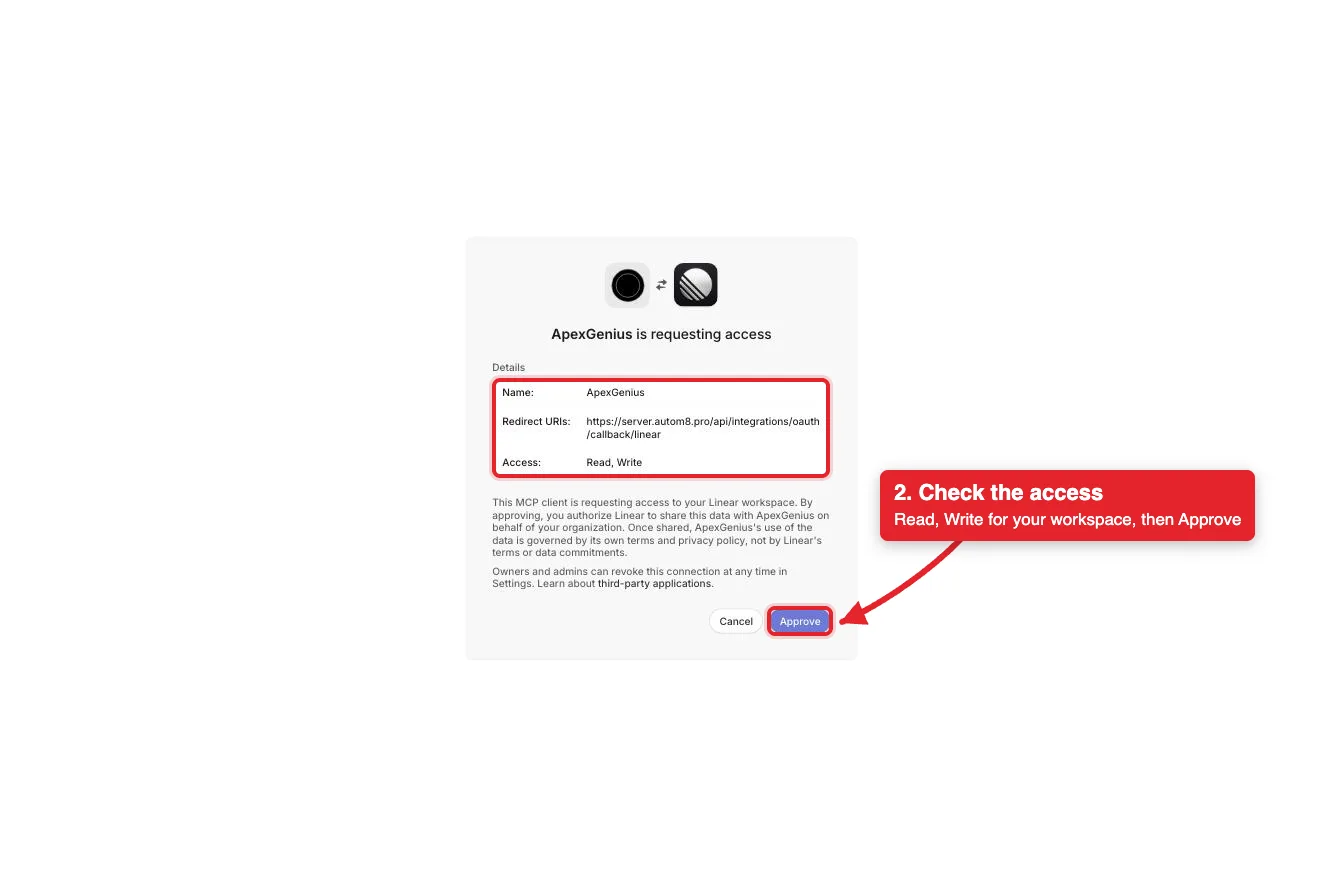
Linear names ApexGenius, its callback address and Read, Write access. Approve connects your workspace. Cancel stops without connecting.Open full-size image (opens in a new tab) - Review the connected account and resources. Confirm the connected Linear workspace. Open Tools to review the issue, project, cycle and comment actions. Writes run right away, and Linear notifies subscribers.
- Check the connection. Use Test connection or Check again and read the reported status. Add an AI agent from the AI agents page, choose Read only for the first test, and try the question below.
2. Connect ApexGenius to Hermes Agent
Use this server address when adding the connection:
https://server.autom8.pro/mcpThe steps are above, under Add the ApexGenius MCP server to Hermes Agent. These notes apply to Hermes Agent only.
- On a server with no browser. Hermes prints “Or paste the redirect URL here” beside the authorize URL. Open the URL on your own machine, approve, and paste the full URL the browser lands on. That page shows a connection error, which is expected.
- Use a new terminal for the sign-in. Editing
config.yamlinside a running session reloads MCP with a 30 second limit, too short for a browser sign-in.hermes mcp loginwaits five minutes. - Where the sign-in is kept. Hermes caches the tokens at
~/.hermes/mcp-tokens/apexgenius.jsonand reuses them until a refresh fails. Runhermes mcp login apexgeniusagain if that happens. - Tool names. Hermes prefixes each MCP tool with the server name, so the ApexGenius tools carry apexgenius in their names.
- Access. When ApexGenius asks what Hermes Agent may use, choose Read only for the first test, or Custom to limit it to the tools you need.
3. Verify one safe read
List my five most recently updated Linear issues. Read only; do not change anything.
List my five most recently updated Linear issues. Read only; do not change anything.Compare the returned account and resource with Linear. Check the connection status separately from the result of the first read.
Full guide: the Linear setup guide.
What it looks like in Hermes Agent
Illustration of a task, not a recorded customer result. Your answers come from the account and dates you choose.
apex_search_toolsLinear issues · Find the Linear read routeCompleteapex_call_read_toollist_issues · List recently updated issuesCompleteIllustrative example: five issues changed in the last two days, each with its team, status and assignee. Compare the workspace with the one you connected. Nothing was changed.
Read-only routeWhat to ask Hermes Agent about Linear
- Recent issues
List my five most recently updated Linear issues. Read only; do not change anything.
Runs
list_issues(read). - Summarize a cycle
Summarize what my team finished in the last completed cycle.
Runs
list_cycles(read), thenlist_issues(read). - Project status
Read the latest status updates on the project I name and list the open risks.
Runs
list_projects(read), thenget_status_updates(read).
These 3 questions use 4 of Linear’s 11 operations. The full list is below.
- Create an issue in the team I name with this title and description. Show me the draft first. (write)
What Hermes Agent can do in Linear
11 operations: 9 read, 2 write. Read looks things up and changes nothing. Writes change Linear and run only when you turn them on.
Issues
2 read · 1 writelist_issuesreadFind issues by team, assignee, project, label, status, priority or cycle.
get_issuereadRead one issue with its details.
save_issuewriteCreate an issue or update one: title, team, assignee, project, labels, priority, status.
Projects
3 readlist_projectsreadBrowse projects in the workspace.
get_projectreadRead one project, including milestones and members.
get_status_updatesreadRead the latest status updates on a project or initiative.
Cycles
1 readlist_cyclesreadList a team’s cycles.
Comments
1 read · 1 writelist_commentsreadRead the comments on an issue.
save_commentwritePost a comment or edit one.
Teams and people
2 readlist_teamsreadList the teams in the workspace.
list_usersreadLook up people to find an assignee, lead or owner.
You choose the access. When you approve Hermes Agent, pick Full access, Read only, or Custom.
One connection covers one Linear workspace. Connect again for another workspace.
Your Linear permissions set what the connection can reach. ApexGenius tool controls do not add Linear permissions.
The read route checks Linear’s live read-only label and rejects writes.
Writes run immediately. Blocked hides a tool from agents.
ApexGenius cannot undo a Linear change. Disconnecting stops future gateway access; it does not reverse an issue, update or comment that already ran.
Questions about connecting Hermes Agent to Linear
Updated November 12, 2026.
How do I connect Hermes Agent to Linear?
Connect Hermes Agent to Linear through ApexGenius in three steps. Sign in to ApexGenius and connect Linear by signing in to Linear in the browser and picking the workspace. In Hermes Agent, add an apexgenius entry with the ApexGenius MCP address and auth: oauth under mcp_servers in ~/.hermes/config.yaml, then run hermes mcp login apexgenius. Then open a task in Hermes Agent and ask a question about your Linear. Start with a read, so nothing changes.
How do I check that Hermes Agent can use Linear?
Run hermes mcp test apexgenius. It connects, lists the tools it found and exits 0 when the connection completes. In a session that is already open, /reload-mcp picks up a config change. If the sign-in has expired, run hermes mcp login apexgenius again. Then ask: “List my five most recently updated Linear issues. Read only; do not change anything.”
Is there a Linear MCP server for Hermes Agent?
Yes. ApexGenius is an MCP server that Hermes Agent connects to once. It carries your Linear connection and 11 Linear operations, so Hermes Agent does not need a separate Linear integration or plugin. You set it up one time and add each agent the same way.
What can Hermes Agent do in Linear once it is connected?
Hermes Agent can run 11 Linear operations through ApexGenius: 9 reads that find issues and read projects, status updates, cycles, comments, teams and people, and 2 writes that save issues and comments once you turn writes on. Linear permissions still apply.
Can Hermes Agent read my Linear workspace?
One workspace per connection, the one you pick when you sign in to Linear in the browser. Your Linear permissions set what Hermes Agent can reach, and ApexGenius adds none. Connect again to add another workspace. No Linear API key is pasted into ApexGenius.
Can Hermes Agent change my Linear?
Not until you allow writes. Choose Read only and reads go through a route that checks Linear’s read-only label. With writes on, Hermes Agent can create and update issues and add comments, and Linear notifies subscribers. ApexGenius cannot undo a Linear change.
Can I use the same Linear connection with Claude, ChatGPT, Grok Bot or Muse?
Yes. One Linear connection in ApexGenius works with every compatible agent you add, including Claude, ChatGPT, Grok Bot or Muse. Each agent gets its own access choice and its own short setup, so you can pick read only for one agent and more for another.
More connections like this one
Hermes Agent with other apps
 Supabase
 Cal.com
 GitHub
 Stripe
 Jira
 HQ Rental
 Google Forms
 Google Tasks
All 48 apps Hermes Agent can use
 Google Calendar
 Google Sheets
 Calendly
 ClickUp
 monday.com
 ElevenLabs
 FreshBooks
 Trello
 GitLab
 Mobbin
 Slack
 Discord
 ChatGPT Ads
 Context.dev
 Attio
 Semrush
 Notion
 Apify
 Google Ads
 Google Analytics
 Google Meet
 Gmail
 Google Chat
 Google Docs
 Google Drive
 Google Slides
 Apollo
 Blotato
 Bing Webmaster
 Atlassian Rovo
 Polymarket
 OP.GG
 YouTube
- YouTube Analytics
 Salesforce
 n8n
 Confluence
 Google Search Console
 TypeSafe
 HubSpot
 Claude
 Grok Bot
 Muse
Connect Linear to Hermes Agent today
Start free1,000 free credits. No card required. Disconnect any time.