
YouTube MCP Connector for AI Agents
Connect Claude, ChatGPT, Codex, Muse and other AI agents to YouTube over MCP: read channel details, videos, and playlists for your authorized channel.
Connect the channel you manage, and your AI can check its identity, read video details and playlists, and suggest titles and descriptions without saving changes. It runs on YouTube’s official Data API with only the access you chose.
1,000 free credits · No card required
What happens when you ask
Every call takes the same route

“Which YouTube channel are you connected to, and what are its newest videos?”
apex_search_toolsYour AI finds the YouTube operations your connection allowsDiscoveryyoutube_channels_listReads the channel you enabled during Google sign-inReadyoutube_search_listLists recent videos from that channel onlyRead
Then your AI answers with the channel name, its ID and the newest videos, and both calls are on your activity record with the client that made them.
Read-only access to your enabled channel.
Google grants read-only channel access. ApexGenius keeps the selected channel and enabled tools as separate checks.
Read channel information
Uses your enabled channel
- Channel identity and details
- Video titles, descriptions, and statistics
- Owned playlists and their videos
Google consent: read-only YouTube access.
Read performance separately
Use YouTube Analytics
- Views and watch time
- Audience and traffic metrics
- Existing daily reports
Google consent: read-only channel and Analytics access.
The full reference lists every reviewed operation with its access level: 13 operations, 13 of them reads, counted from the catalog when this page is built. Open the YouTube tool reference
What people ask Codex.
Ask Codex about your channel, videos, and playlists. ApexGenius connects each question to your YouTube tools.


apex_search_toolsYouTube channel identity · Find YouTube channel readsCompleteapex_call_read_toolyoutube_channels_list · Read the connected channelCompleteIllustrative example: here is your connected channel, with its name, description and channel ID. Use this to confirm which channel your AI can work with.
Read-only route- Show the name and details of my connected YouTube channel.Read
- Show the playlists for my connected YouTube channel.Read
- Read the title, description and status of a video I choose from my channel. Suggest changes without saving them.Read
- Find videos on my channel about a topic I choose. Show their titles and descriptions.Read
How to connect YouTube.
The connection belongs to your ApexGenius sign-in, and the channel you pick is the only one your AI can reach. Use the Google account that can access the channel; if Google offers a Brand Account, choose the intended one before you continue.
Read the steps Follow along at your own pace
1. Open YouTube
In Connections, search for YouTube and open its module.
2. Choose access
Select Read channel and videos, then Connect.
3. Allow access on Google
Choose the Google account for your channel. Review View your YouTube account, then choose Allow.
4. Test the connection
Back in ApexGenius, select Test connection. Check the channel name and saved access.
5. Enable your channel
Open Tools. In Allowed resources, turn on your intended channel.
6. Add Codex
Follow the Codex setup guide below, then ask about your channel.
Recorded with the ApexGeniusAI channel. Open the video
Before you start
- A Google account with access to the YouTube channel you intend to connect. Check the channel in YouTube first, especially if you use a Brand Account.
- An ApexGenius account with this module available. If setup is pending or the module is missing, contact support.
1. Connect YouTube to ApexGenius
- Open YouTube in Connections. Find the YouTube group and open YouTube. Each module has its own channel and access selection.
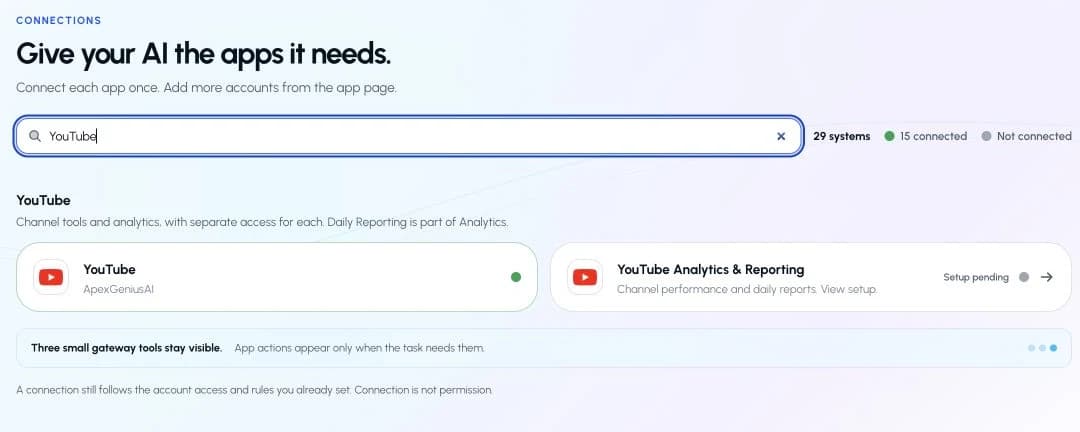
Find the YouTube group and open YouTube. Analytics & Reporting has its own setup.Open full-size image (opens in a new tab) 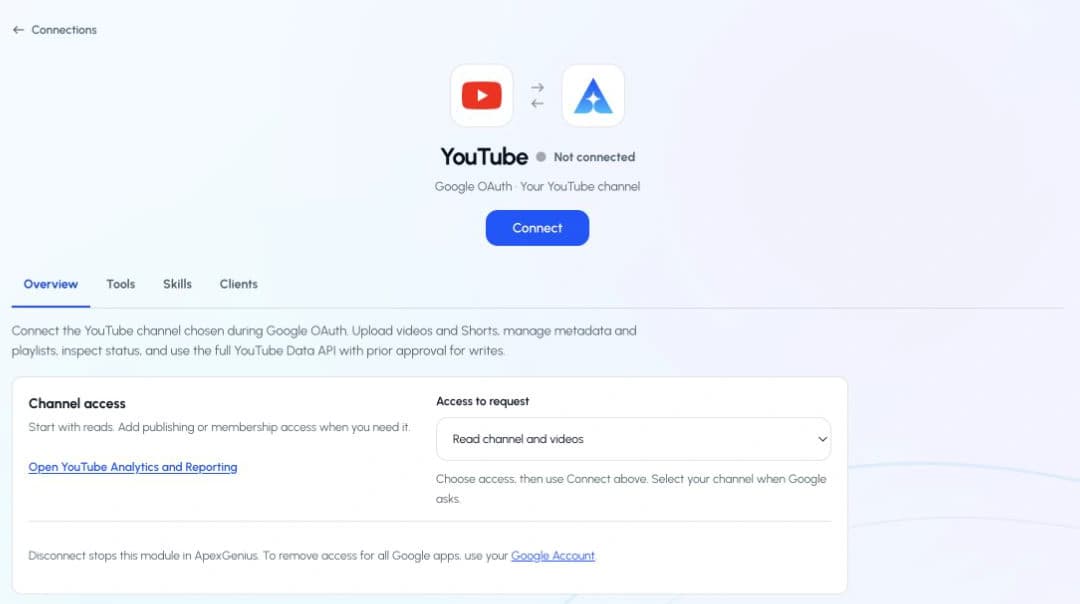
Earlier setup view. Review the current read-only access, then use Connect for initial setup.Open full-size image (opens in a new tab) - Review read-only access. Read channel details, videos, and playlists. Uploads, edits, captions, comments, subscriptions, and livestream tools are not included. Use Connect only when setting up this module.
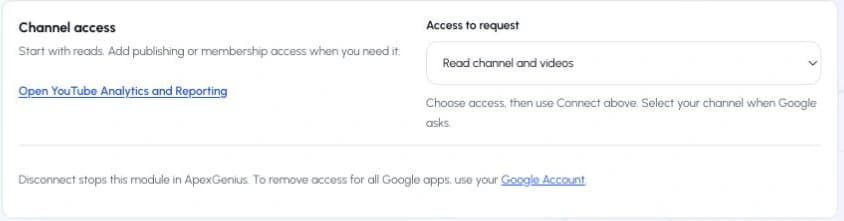
Earlier setup view, captured September 7. The current panel shows read-only access without an access selector.Open full-size image (opens in a new tab) - Select your Google account and YouTube channel. On Google’s own page, select the account with access to your intended channel. If Google offers a channel or Brand Account choice, select the intended channel. Review the requested permissions before continuing. Already granted permissions may make these screens look different. Return to ApexGenius when Google finishes.
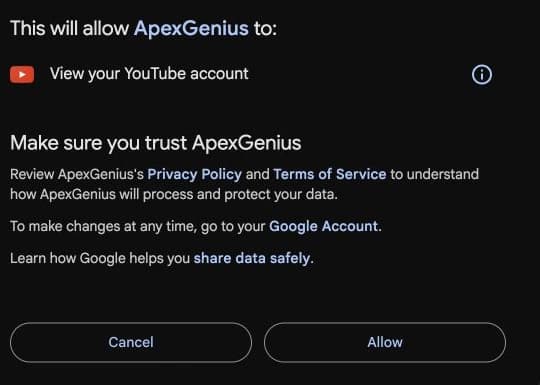
Review the requested YouTube permission, then choose Allow.Open full-size image (opens in a new tab) - Enable the connected channel. Confirm the saved channel name. Open Tools, find Allowed resources, and choose Refresh if needed. Enable the intended channel. Enabling it allows ApexGenius to use existing access; it does not grant new YouTube permissions. If the channel is wrong, stop and connect the intended channel.

Check the channel name and turn on its access.Open full-size image (opens in a new tab) - Check the connection status. Use Test connection or Check again when offered. Read the returned status and confirm the saved channel. A healthy connection does not yet prove that a tool read will work.
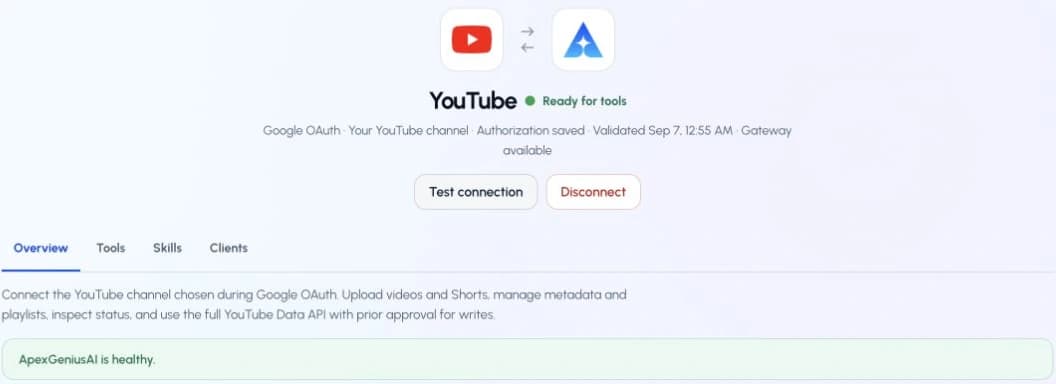
Select Test connection and check the returned channel and status.Open full-size image (opens in a new tab) - Run your first read with an AI agent. Open AI agents and add or select your AI client. Allow this connection with Read only for the first test. Use the question below, then compare the returned channel and data with YouTube Studio. Empty recent analytics can mean data is not available yet.AI agents · First readGuide frame
- Connection
- YouTube
- Access for first test
- Read only
Copy the first question below into your connected AI client. Check the returned channel and result.
Illustrated setup guidance. Follow the controls shown in your own account. Drawn by ApexGenius, not a screenshot, so your screen may differ by version.
2. Choose your AI and finish setup
Each guide includes the AI setup and a first question for YouTube.
Controls on this connection: the channel, the tools, the record.
The same controls every ApexGenius connection has, applied to this one.
The channel
The connection page always names the channel your AI is working in. Check the channel name and connect the intended channel before enabling its access.
The tools
Each AI client gets its own allowed list. YouTube exposes only safe reads; uploads and other write operations are withheld.
The record
Every call is logged with the client that made it, the operation, and whether it succeeded. Disconnect stops ApexGenius access to this channel the moment you press it.
Questions people ask before connecting.
- Will connecting let my AI publish videos?
- No. This connection exposes read-only tools and cannot upload, publish, edit, or delete videos.
- Which channel will my AI use?
- The one you selected on Google’s screen and enabled in ApexGenius. Its name is on the connection page. If you manage several channels, connect the one you want and check the name before you enable it.
- Do I need my own Google Cloud project or API key?
- No. You sign in with the Google account that can access the channel, and ApexGenius holds the authorization. You never paste a password or a verification code into ApexGenius.
- Can it read transcripts of other people’s videos?
- No. Captions and video or audio analysis are not included. This connector reads information about videos on your enabled channel.
- Where do performance numbers live?
- In YouTube Analytics, a separate connection in the YouTube group with its own access and daily Reporting. This connection covers channel details, video information, and playlists.
- What happens when I disconnect?
- ApexGenius stops using this channel immediately. Removing the ApexGenius app from your Google Account also affects any other Google connections you made with it, so check those first.



Connect YouTube. Start with a read.
Sign in, pick the channel, ask your AI which channel it is connected to. Check the returned channel and data before using the answer.
Connect YouTube1,000 free credits · No card required