

Connect Confluence to Claude
Search, read, create, and update Confluence pages from Claude or ChatGPT.
7 days free · No card required
How to connect Confluence to Claude
Before you start
- An Atlassian account with permission to read the Confluence site and spaces you need.
1. Connect Confluence to ApexGenius
- Open Confluence in Connections. Sign in to ApexGenius, open Connections, choose Confluence, and select Connect.

Open Confluence in Connections and choose Connect to start setup.Open full-size image (opens in a new tab) - Authorize Atlassian. Sign in with the intended Atlassian account, select the correct site, and review the requested permissions.
- Choose the spaces. Return to the saved connection, refresh its resources, and enable the spaces you want your AI to reach.

2. Add ApexGenius to Claude
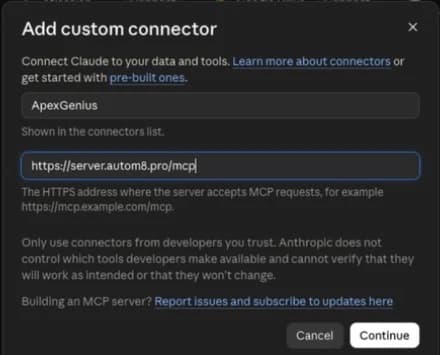
Use this server address when adding the connection:
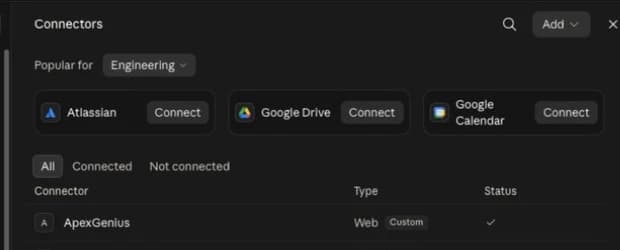
https://server.autom8.pro/mcp- Open Claude Settings, then Connectors, then Add custom connector.
- Enter ApexGenius and the MCP URL above. Choose Connect.
- Approve it in your browser, then turn it on in chat or Cowork.
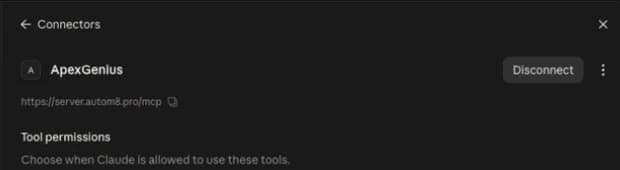
- When ApexGenius asks what this AI client may use, choose Read only for the first test, or Custom to limit it to the tools you need.
- Start a new conversation and select ApexGenius from the available tools before asking for live data.
Read the steps Follow along at your own pace
1. Open Connectors
2. Add ApexGenius
3. Review permissions
3. Verify one safe read
Find up to five Confluence pages I can read. Show their titles and links without editing anything.
Find up to five Confluence pages I can read. Show their titles and links without editing anything.Open a returned page and check that its site, space, and title match the Confluence content you intended to connect.
Additional reference: the Confluence setup guide.
Start freeWhat it looks like in Claude Cowork
An illustrative read-only request and response. Your results come from the account and dates you choose.

apex_search_toolsConfluence pages · Find the Confluence read pathCompleteapex_call_read_toolconfluence_search · Search pages for the runbookCompleteapex_call_read_toolconfluence_get_page · Read the matching pageCompleteFound one page, Salesforce integration user rotation, last updated in March by the RevOps team. It has six steps and a rollback note. Nothing was changed.
Read-only routeWhat you can ask once it is connected
“Find the deployment runbook in the Engineering space.”
“Summarize the current onboarding pages and flag contradictions.”
“Compare the release notes with the current deployment runbook.”
“Add a decision log entry to the architecture page.”
You choose what Claude is allowed to touch
Choose the saved accounts and tools this Claude connection may use. Its authorization carries that scope, and each business connection’s tool and resource restrictions still apply.
- Full accessEvery enabled tool on the connections you choose.
- Read onlyLooks things up, changes nothing.
- CustomPick apps and tools one by one.
- · The connected account determines which Confluence content can be reached.
- · Create and update tools use the scopes granted to the connected Atlassian account.
- · Supported Confluence write activity is recorded for review.
- · Server-enforced Auto, Ask, and Off approval modes are in development.
The Confluence operations Claude can run
6 operations: 4 Read and 2 Write. Available tools depend on your connection and permissions. Review any action that changes or removes data. Claude discovers these operations through the ApexGenius gateway.
confluence_list_spacesReadList the spaces available to the connected account.confluence_search_pagesReadSearch pages by title or keywords.confluence_list_pagesReadList pages inside a selected space.confluence_get_pageReadRead one page and its current body.confluence_create_pageWriteCreate a Confluence page from supplied Markdown content.confluence_update_pageWriteUpdate an existing page using its current version number.
Questions people ask first
Which Confluence spaces can an agent reach?
The spaces the authorizing account can already reach. ApexGenius never widens access beyond the permissions the account has in Confluence.
Can an agent publish or overwrite a page?
Write operations exist and can be switched off per connection. Anything that overwrites or removes content is marked destructive and queues for approval.
Is page content stored by ApexGenius?
The ordinary MCP path does not intentionally retain page content. Connection, usage, and audit records are retained so you can review what ran.
Can I give one agent read-only access to Confluence?
Yes. Scope that client to read-only and the write operations never appear in its tool list at all.
Connect Confluence to Claude today
Start free7 days free. No card required. Disconnect any time.